How to add alt text to images in WordPress
Alt text, which WordPress calls Alternative text, is a short description of a photo. In the block editor, click the image and type it in Alternative text, in the settings on the right. Say what the photo shows, in one sentence.
Rather see it on your own site? Run the free check-up.
Why alt text matters
- Blind visitors. Screen readers read it aloud. Without it they say nothing useful where the photo is, or read its file name.
- Search engines. They read it to tell what a photo shows, for image search and for the page itself.
- A photo that cannot load. The browser shows the alt text in its place.
How to add alt text in WordPress
On a page or a post, in the block editor:
- Open the page in the editor.
- Click the image.
- In the settings on the right (the Block tab), type in Alternative text.
- Save the page.
In the Media Library, for the featured image of a page and the photos you will place later: Media, Library, click the photo and type in Alternative Text. It saves by itself.
A photo already placed on a page keeps the alt text it had when you placed it: changing the Media Library later does not change the page. WordPress has no list of the photos without one, so check each page in the editor, or let the free check-up count them.
What to write
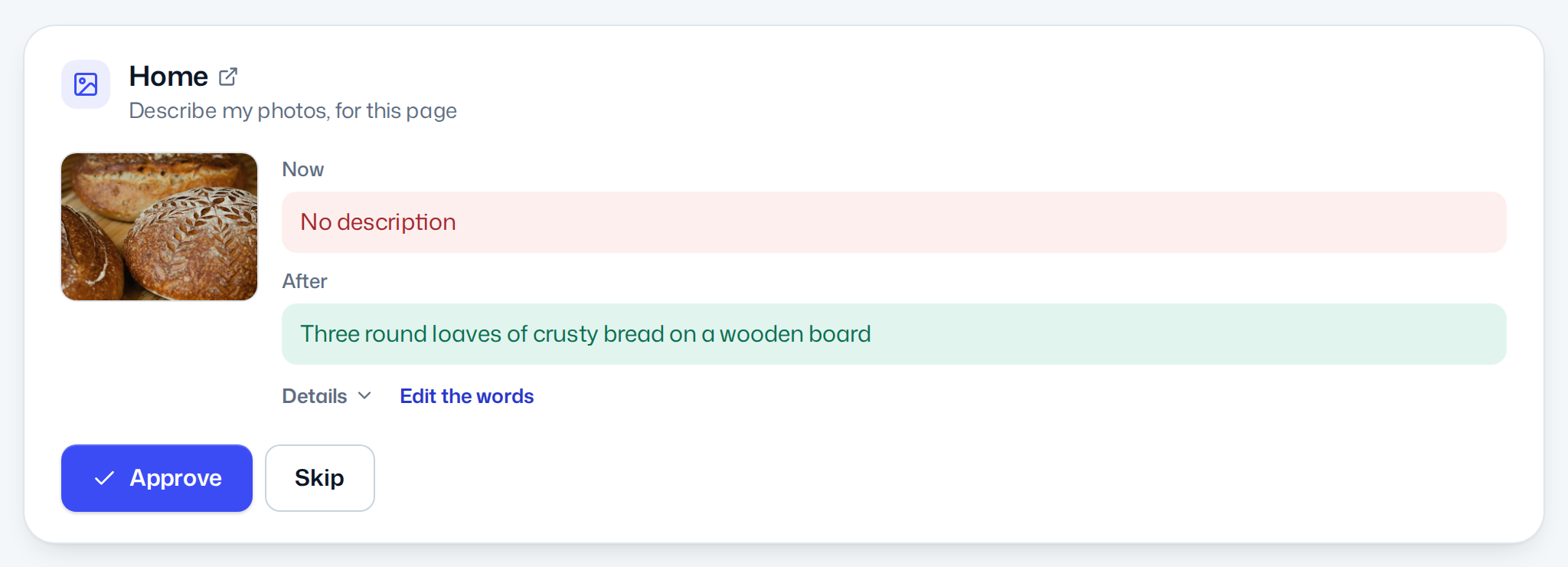
- What the photo shows, as you would say it on the phone: "Three round loaves of crusty bread on a wooden board."
- One short sentence, in the language of the page. No "image of" or "photo of": screen readers already say it is an image.
- A person's name when the photo shows them, as on a team page.
- Nothing for a picture with nothing to see, such as a divider: leave the field empty, and screen readers skip it.
How LaminarFlow does it
- Free check-up
- Counts the photos without a description on each page it reads.
- The fix
- Connect your WordPress site to Autopilot, which takes about a minute. Fix writes a description for each photo, in the language of its page. A photo beside a person's name is described by that name, a caption you wrote is taken as true, and a picture with nothing to see gets an empty description. You can edit the words before you approve. Only the description changes: the photo, its file and its place stay as they are.
- Your OK
- Each fix waits in your inbox as a draft, before and after. Nothing changes on your site before you approve it, and every change keeps an Undo for 60 days.
- Cost
- Each photo described uses one AI fix; a photo shown on several pages counts once. The free trial has 25 AI fixes to use in 30 days.
Every detail, in the documentation: Photo descriptions.
Questions
Is alt text the same as a caption?
No. A caption shows under the photo for everyone. Alt text is read aloud by screen readers, read by search engines, and shown only when the photo cannot load.
I changed the alt text in the Media Library. Why did my page not change?
A photo placed on a page in the block editor keeps the alt text it had when you added it. Change it on the page itself: select the image and edit Alternative text in the settings on the right.
Does every image need alt text?
Every photo that shows something does. A picture with nothing to see, such as a divider or a background pattern, gets an empty one, so screen readers skip it.
Does Autopilot change my photos?
No. Only the description changes: the photo, its file and its place stay as they are. Each photo described uses one AI fix; the free trial has 25 to use in 30 days.